Who built this & why
Hi — I'm Matt Maggio, a strategic account manager at Future Electronics, and I built SalesAgent to take the busywork out of the day-to-day: researching an account before a call, cross-referencing a part against the line card, spinning up a first-draft outreach email, and mapping a product into a block diagram — all from plain-language prompts instead of a dozen browser tabs.
It's a personal side project, built and maintained on my own time. It started as a local tool I built for my own work — Jake Willebrandt thought it could be useful for everyone doing the same job, so I built it out into this. It isn't an official company tool — it's just something I found genuinely useful and wanted to share with people doing the same work. You bring your own free API key; nothing you type is stored on my servers.
What it does
Six focused workspaces — pick a tab and type what you need.
● Account Research
A full intelligence brief on a company — tech stack, supplier fit, contacts, and next steps.
● Email Drafter
Personalized outreach that leads with a relevant resource and matches the buyer persona.
● Prospecting
A scored list of target accounts in your territory and verticals.
● Part Finder
Spec search, competitor cross-references, and datasheets — franchise lines flagged first.
● Block Diagram
A system block diagram of a product with franchise suppliers mapped to each block.
● General Chat
An open-ended agent with every tool available — parts, accounts, or just thinking out loud.
Getting started
There's no account to create and nothing to install. It runs in your browser on a free key you own — about two minutes, once.
Open the link & bookmark it
Go to the SalesAgent app in any modern browser (Chrome, Edge, Safari, Firefox) and bookmark it. Everything lives in this one page.
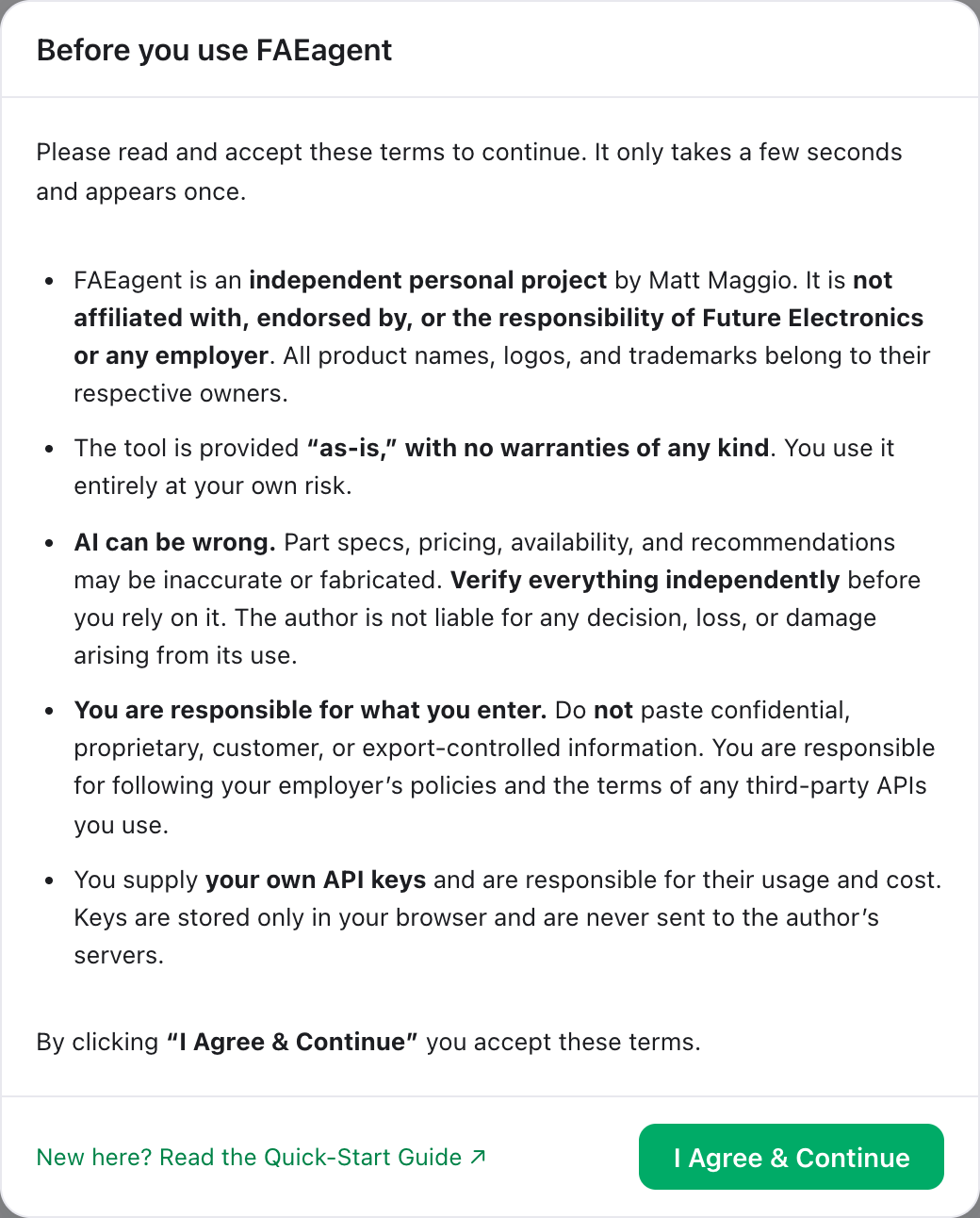
Accept the terms
The first time you open it on a fresh browser, a short one-time notice appears. Give it a read and click “I Agree & Continue.” The gist: it's a personal project, provided as-is, AI output can be wrong so verify it, and don't paste confidential or customer data.
Grab a free Google Gemini key
SalesAgent runs on your own key so it stays free and private. Open aistudio.google.com, sign in with a Google account, click Get API key → Create API key, and copy it. No credit card required.
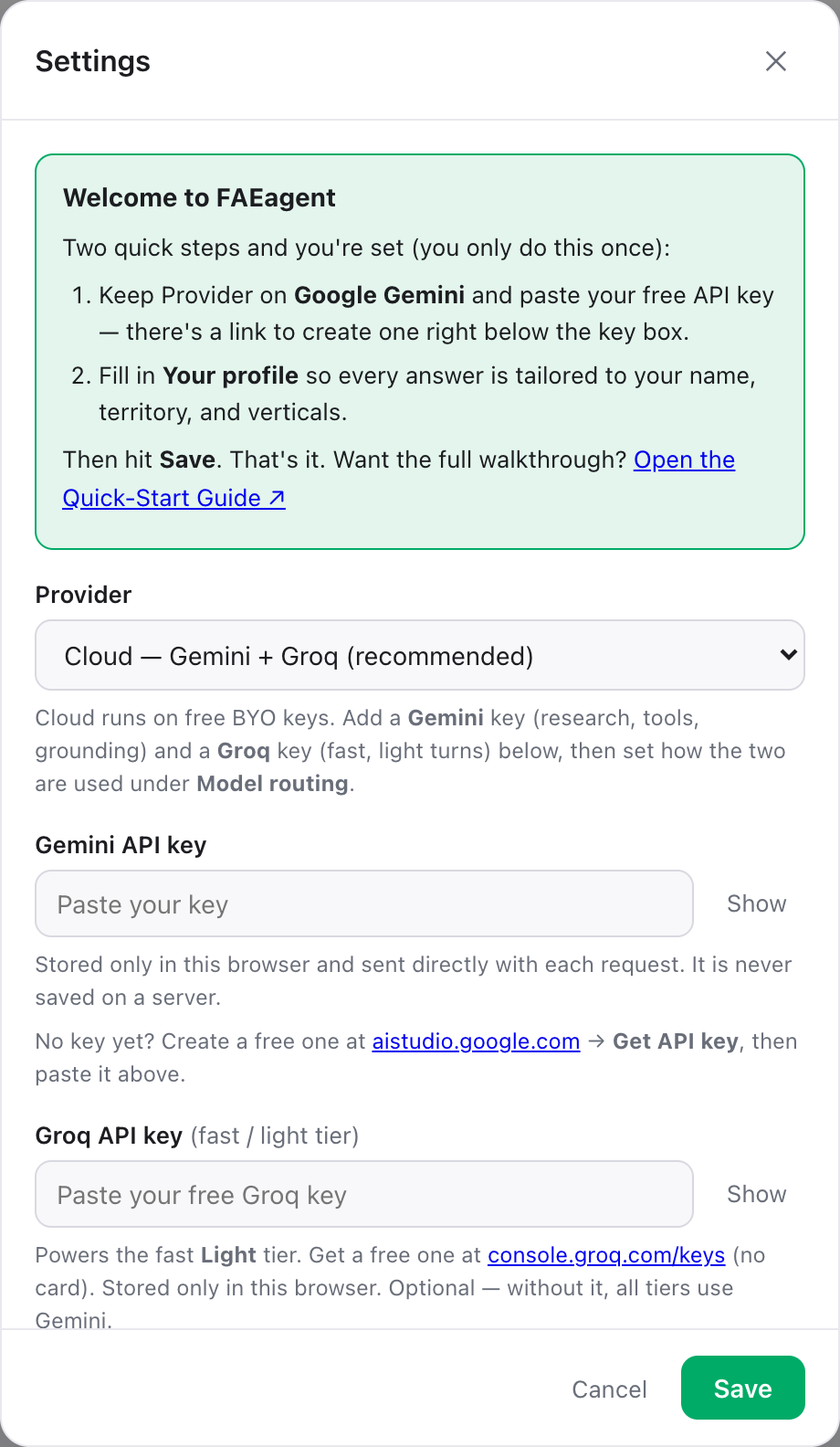
Paste your key & set your profile
On first open, Settings pops up automatically. Keep the provider on Gemini, paste your key, and fill in your name, territory, and verticals so every answer is tailored to you. Hit Save. Your key and profile are stored only in your browser.
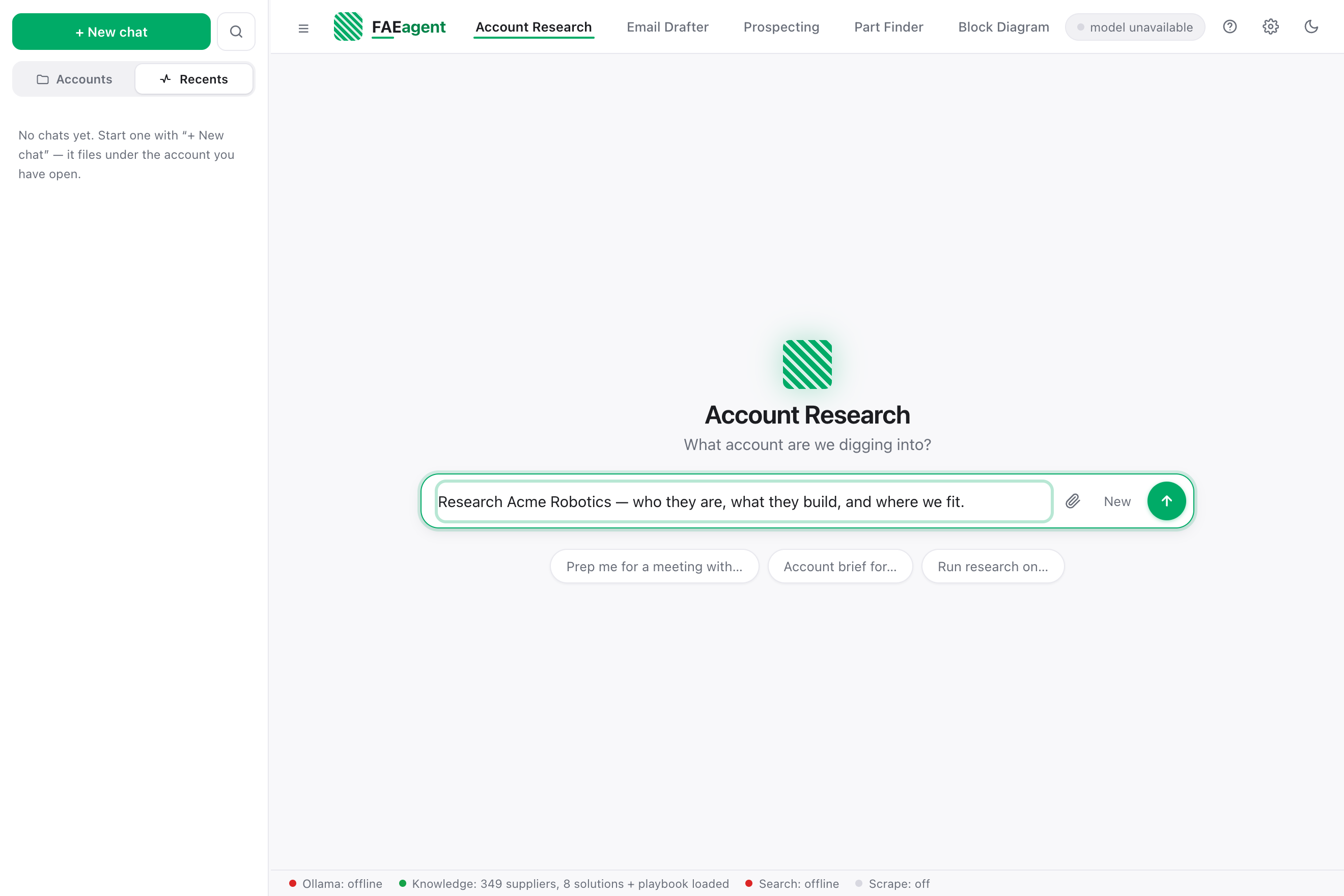
Pick a tab and ask
That's it. Choose a workspace tab and type what you need in plain English — "Research Acme Robotics," "Cross a TPS54560 to a franchise part," "Draft an intro email to their power lead." Use the Accounts rail on the left to keep each customer's chats and files together.
Optional add-ons — sharper research
Two optional free keys make research noticeably sharper. Both live under the gear ⚙ and are stored only in your browser — Gemini alone is enough to start.
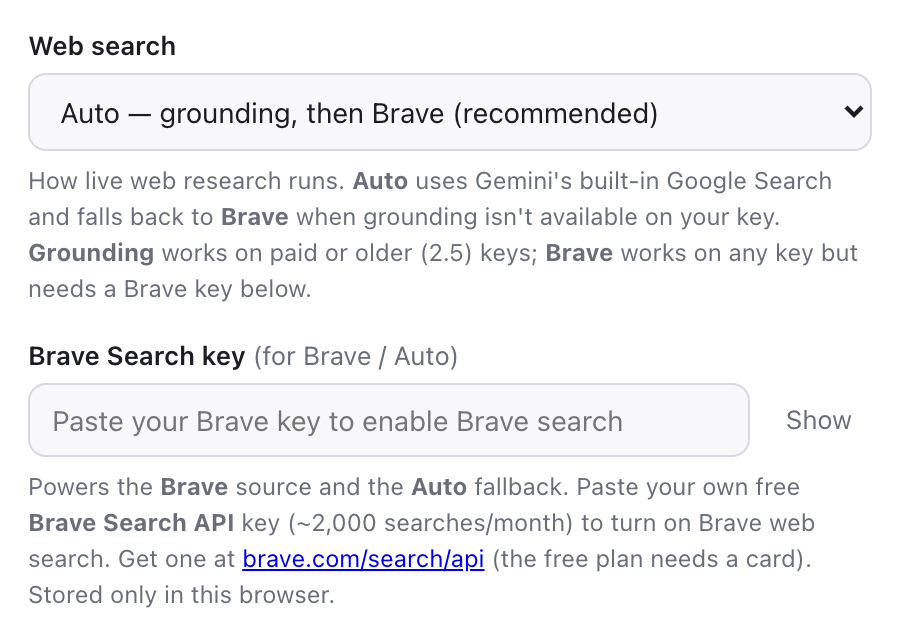
Brave Search — web search on any key
SalesAgent's live web research normally rides on Gemini's built-in Google grounding, which needs a paid or older Gemini key. Add a free Brave Search key and, under the gear ⚙, set Web search to Auto or Brave — now web lookups work on any Gemini key. Auto tries grounding first and automatically falls back to Brave when it isn't available.
Firecrawl — read the customer's website
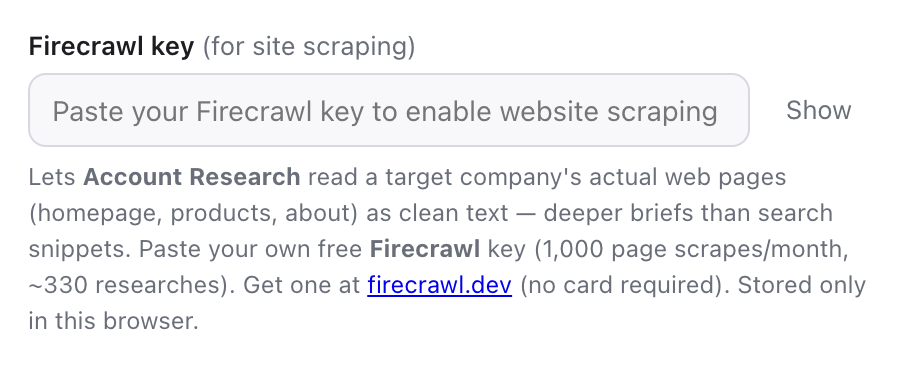
With a free Firecrawl key, Account Research reads a target company's actual web pages — homepage, product lines, about — as clean text instead of relying on search snippets. The result is a much sharper brief, grounded in what the company says about itself.
Good to know
- Your keys stay put. Keys, profile, and chats live in your browser only — never on a server.
- Don't paste confidential data. Prompts and attachments go to your chosen cloud model to be read, so keep customer BOMs, pricing, and proprietary material out of it.
- Verify what matters. AI can be confidently wrong on specs, pricing, and availability — double-check anything before you act on it.
- It's free to run. Free keys cover normal daily use; if one gets busy, SalesAgent automatically falls back to another model so you still get an answer.